Giving a Brain to a Shell App

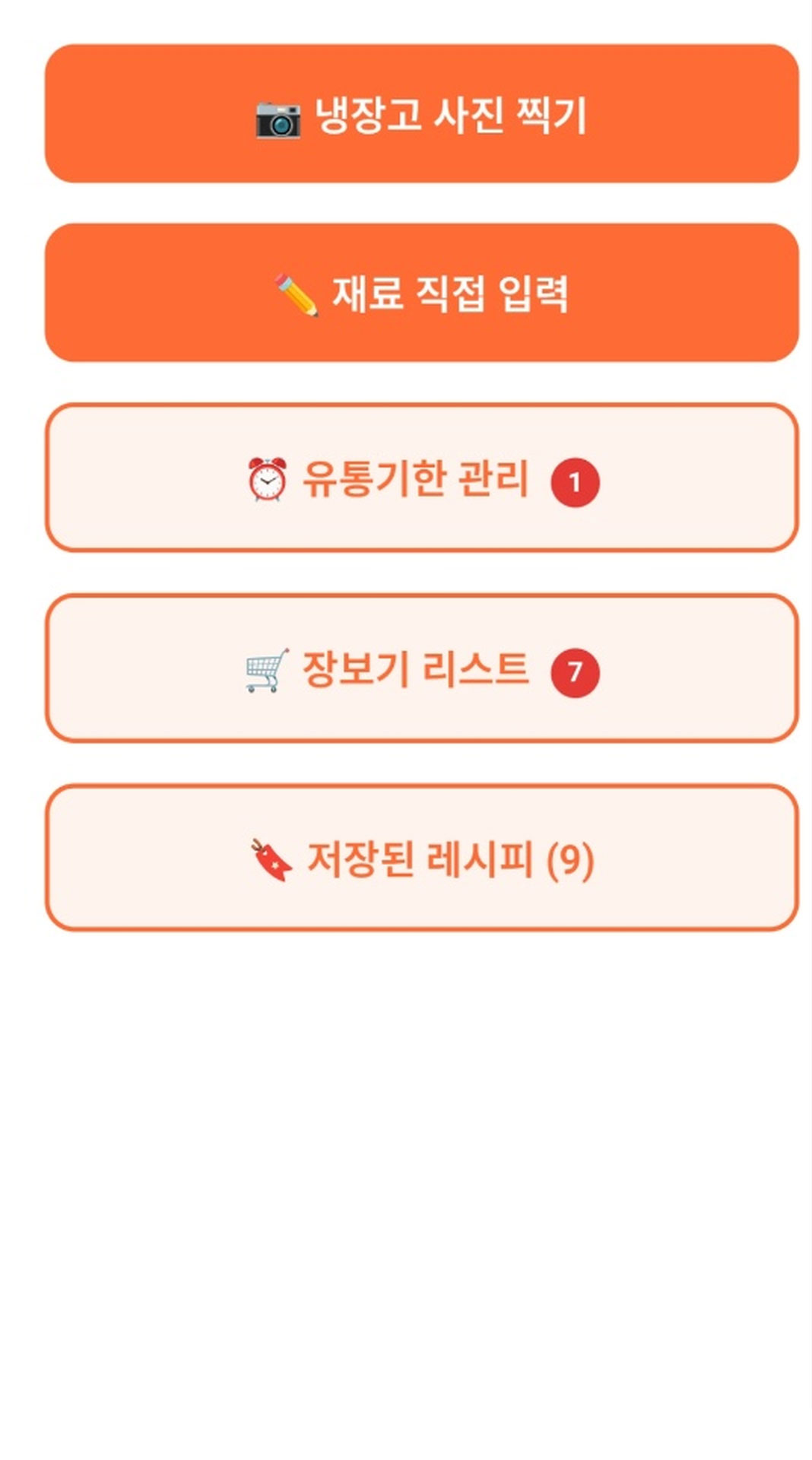
In Part 4, we succeeded in displaying the first screen of the web app in the browser. There were buttons, input fields, and a plausible layout. However, nothing happened when any button was pressed. It was a state where there was a screen but no brain. It was time to implant the ability to actually think into this app. That is precisely what Gemini API integration is.

The Gemini API is the core of K-Cold Food Scramble. The entire process—identifying what ingredients are by looking at a photo of the refrigerator contents, recommending dishes that can be made with those ingredients, and even calculating calories—is carried out through the Gemini API. The moment this integration is successful, K-Cold Food Scramble transforms from a simple webpage into a real AI app. The development preparation process and the initial launch of the web app were covered in Part 4.

The Gemini API integration process consists of three main steps

API integration can sound complicated. However, with Claude, you can proceed by asking questions about each step one by one. k-Naengteol's Gemini API integration was composed of three main steps.

Step 1 — Setting API Key Environment Variables

To use the Gemini API, you need an API key. Directly inserting the API key issued in Part 3 into your code is a security risk. This is because the API key is exposed as is when you upload your code to GitHub. The solution is to manage it as an environment variable. This method involves storing the API key in a `.env` file and calling that variable from your code. When I asked Claude, "How to safely manage Gemini API keys as environment variables in a React app," he immediately showed me how to set up the `.env` file and provided the code. It was at a level that even someone without coding knowledge could follow.

Second Step — Requesting Integration Code from Claude

Once the environment variable setup was complete, I requested the actual integration code. I specifically asked him to "create a function that calls the Gemini API from the React app, receives a list of ingredients entered as text, and recommends a recipe." The key point was that instead of vaguely saying "Integrate the API," I clearly explained the input (list of ingredients) and the output (recipe recommendation). Claude wrote the API call function, configured the prompt, and parsed the response all at once.

Third Step — The Moment the First Response Appeared

After pasting the code into GitHub and deploying it, I opened the app, entered the ingredients, and pressed the button. A loading spinner spun, and then text began to appear on the screen. "We recommend dishes you can make with the ingredients you entered." I still vividly remember the moment that sentence appeared. Someone who had never coded before had created a working AI app solely through conversation with the AI.

k냉털 Gemini API 첫 번째 응답 화면

Implementing the Ingredient Recognition Function

Once the function to receive ingredients via text was activated, the next step was the feature to automatically recognize ingredients from photos taken with the camera. This is the core differentiating factor of k-Cold Food. Manually typing ingredients versus having them automatically filled in from a single photo is a completely different dimension in terms of user experience.

Taking a Photo with the Camera

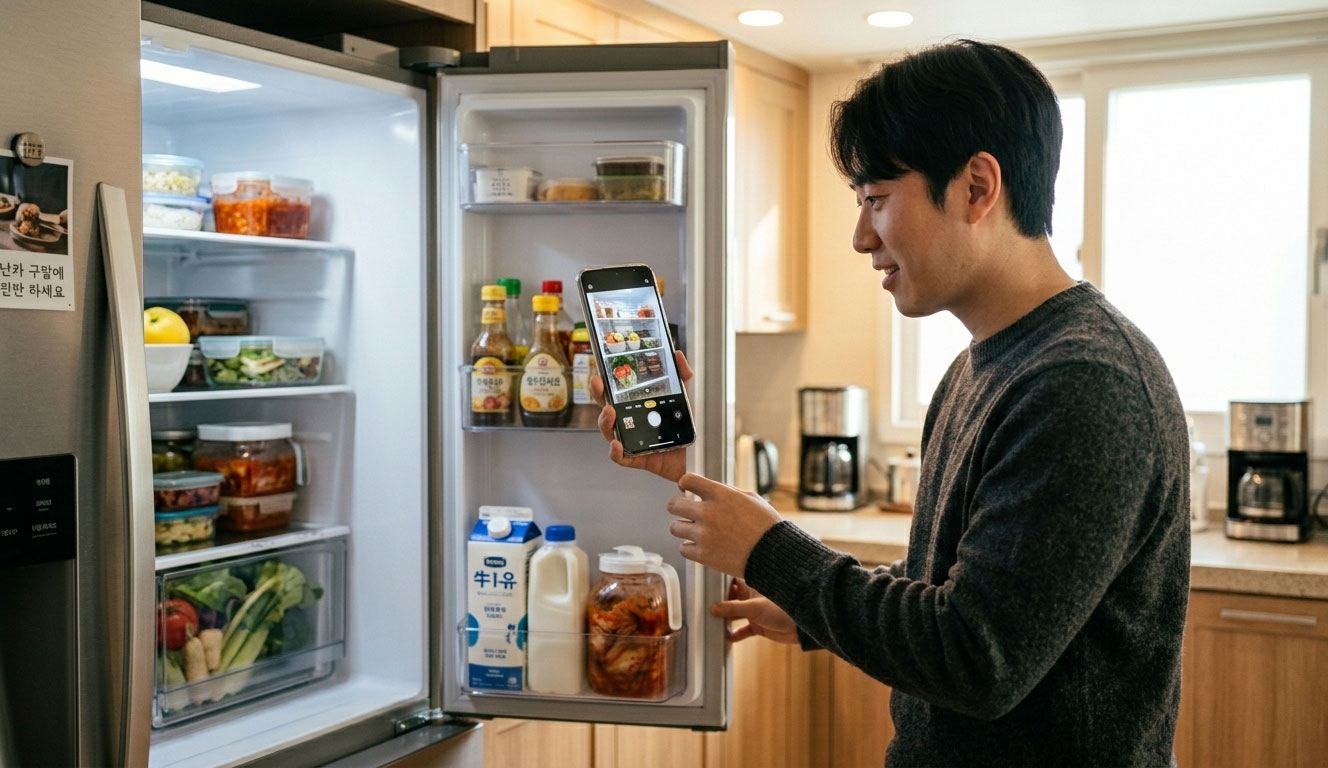
Opening the camera in a mobile environment was simpler than expected. By adding the `capture="environment"` attribute to the HTML `input type="file"` tag, the smartphone's rear camera opens immediately. When I asked Claude for "code to take a photo with the camera on a mobile device and send it to the Gemini API," he created the complete code to convert the image to Base64 and send it to the API. It was structured to handle file selection, preview, and API transmission all at once.

k냉털 카메라로 냉장고 재료 촬영하는 장면

The Moment AI Reads the Ingredients

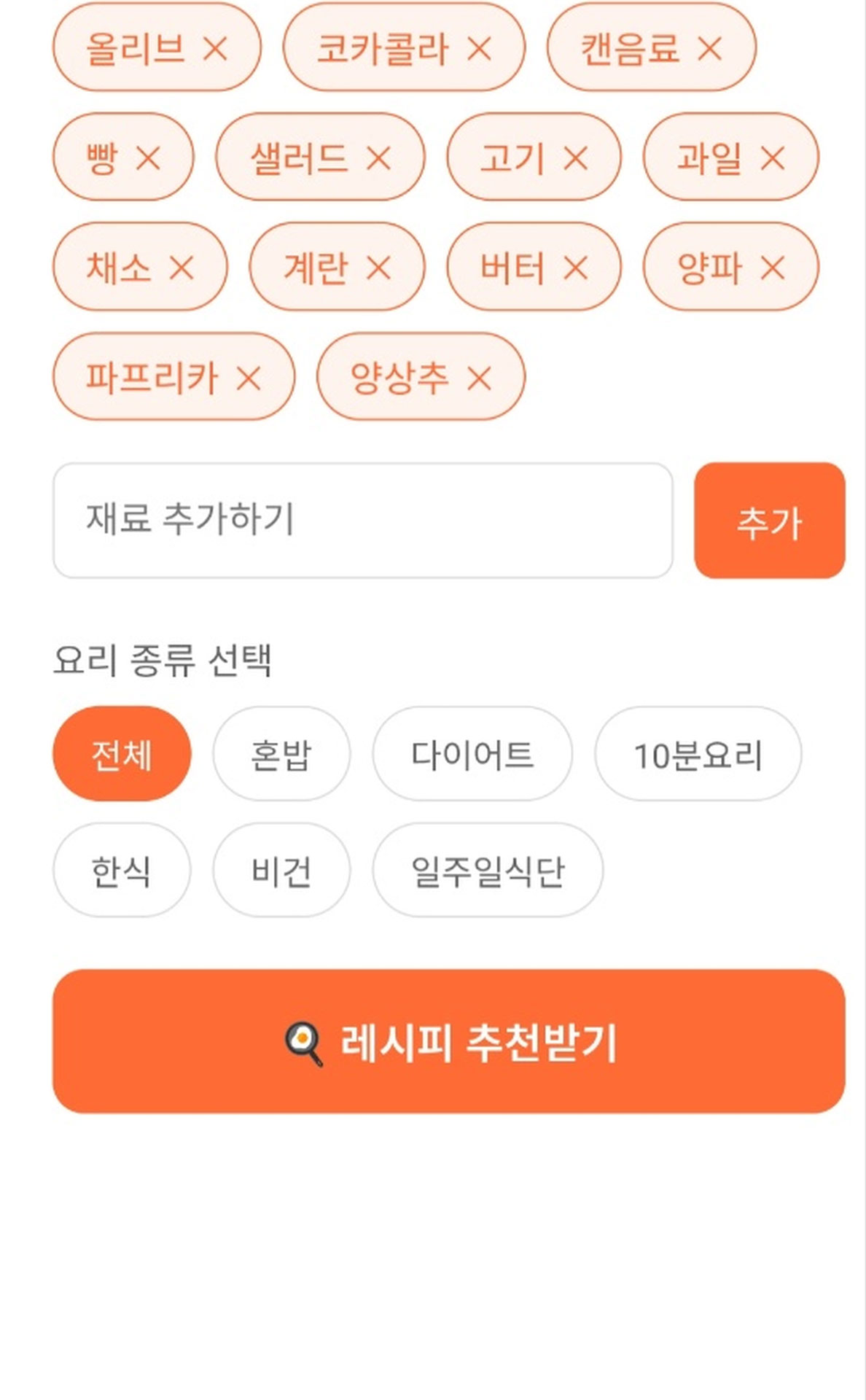
I took a picture of the ingredients inside the refrigerator and sent it. Gemini analyzed the photo and returned a list of ingredients as text. Carrots, eggs, tofu, green onions—the ingredients in the photo were automatically filled into the input field. At that moment, I realized for the first time that K-Refrigerator Raid was not just a simple recipe app, but a real AI app. Of course, it wasn't perfect from the start. There were instances where it confused ingredients of similar colors or failed to recognize ingredients inside bags. So, we also implemented a feature that allows manual modification of automatically recognized materials.

k냉털 AI 재료 인식 결과 화면

First Errors I Encountered — API Key Issues

The integration process was not entirely smooth. The first problem I encountered was an API key error. The code was correct, but the "API key not valid" error kept popping up. It took quite a while to find the cause. The issue was the environment variable name. In a React app, environment variables must start with `REACT_APP_`. I should have written `REACT_APP_GEMINI_KEY` instead of `GEMINI_KEY`. I struggled for a long time because I didn't know this rule.

The second problem was that environment variables were not being applied in the Cloudflare Pages deployment environment. It worked fine locally, but the situation where the API key could not be read repeated itself upon deployment. It was only resolved after I asked Claude that I needed to register environment variables separately on the Cloudflare Pages dashboard. From the perspective of someone unfamiliar with coding, it is not easy to identify the cause of an error just by looking at the error message. The fastest method was to paste the error message exactly into Claude and ask, "What does this mean and how do I fix it?" The reason for selecting the technology stack during the planning and design phases was covered in Part 3.

The app with a brain; next, it's time to build the body.

The Gemini API integration process consisted of three main steps: setting API key environment variables, implementing the integration code, and integrating camera image recognition. Through these three steps, K-ColdTeol transformed from a shell that didn't respond when buttons were pressed into a real AI app that recognizes ingredients and recommends recipes.

However, there was still a long way to go. While recipe recommendations were available, the screen was clunky, calorie calculation was still missing, and there was no save function. In the next installment, we plan to cover the process of refining the app's UI and adding calorie calculation and recipe saving features.